
How to Get 75M Free Tokens Daily for OpenClaw
How to Get 75M Free Tokens Daily for OpenClaw
If you’re running OpenClaw, tokens are a real consumable. We recently deep-tested two highly stable, free channels from major tech providers that allow direct access to top-tier models (like GLM-5) with virtually no quota limits, making them ideal for running OpenClaw.
01 70 Million Daily Tokens from OpenRouter
OpenRouter’s biggest advantage is that it aggregates almost all mainstream models on the market and offers substantial free quotas. On my second day of “raising lobsters” (running OpenClaw), I fully grasped how OpenRouter works. At the time, QWen 3.6 was in its free usage period, and I used up to 75 million tokens in a single day, making nearly 1,000 requests.
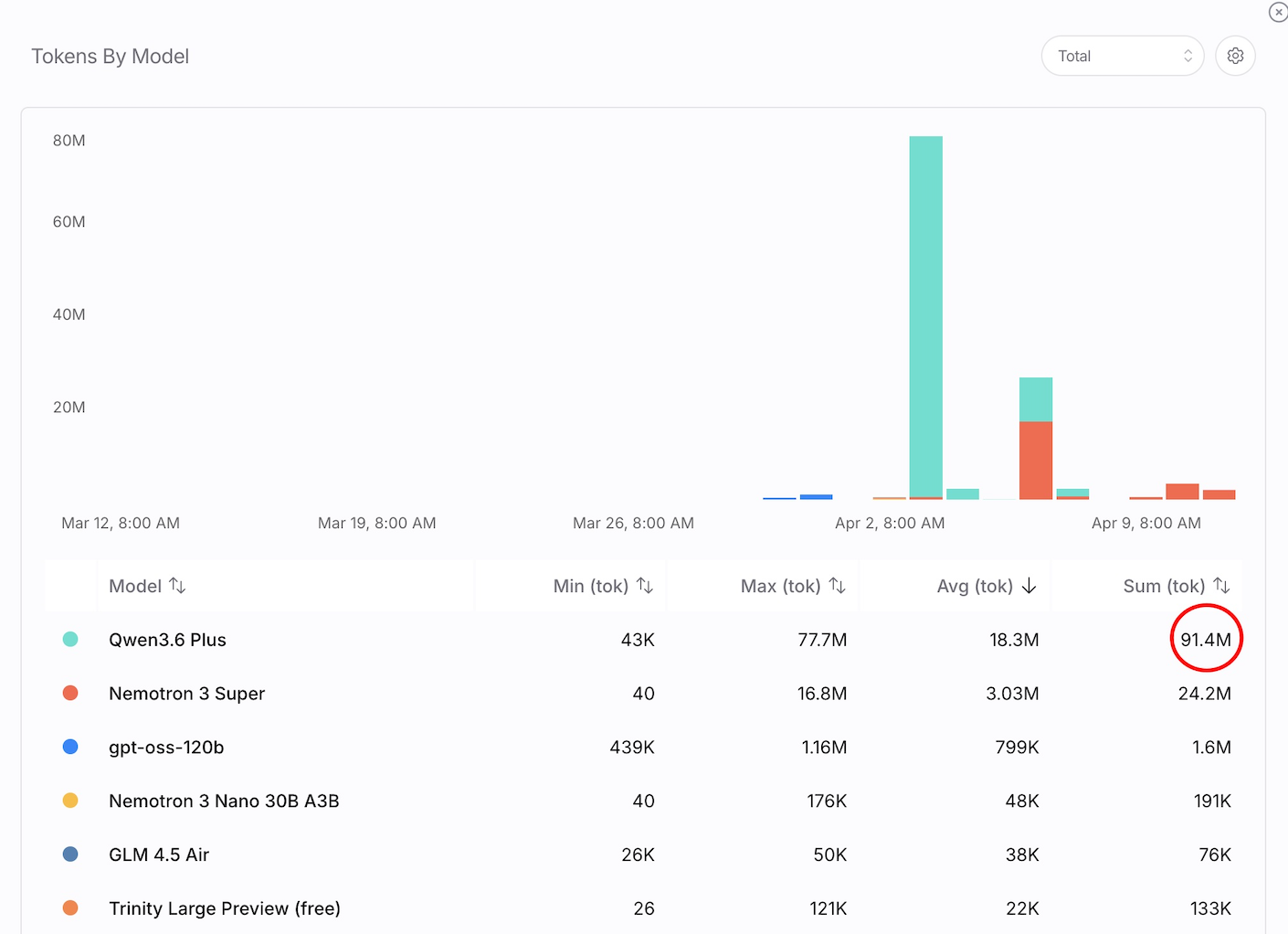
Although QWen 3.6 is no longer free, there are still excellent large models available for free that are definitely worth exploring.
tip
OpenRouter’s free tier started in Q3 last year. Large models are typically offered for free for two reasons: first, for commercial promotion; second, new models need massive real-world use cases to help them fine-tune before official release. So, use them freely with confidence—they need your help!Visit the Official Website
Enter the URL https://openrouter.ai.
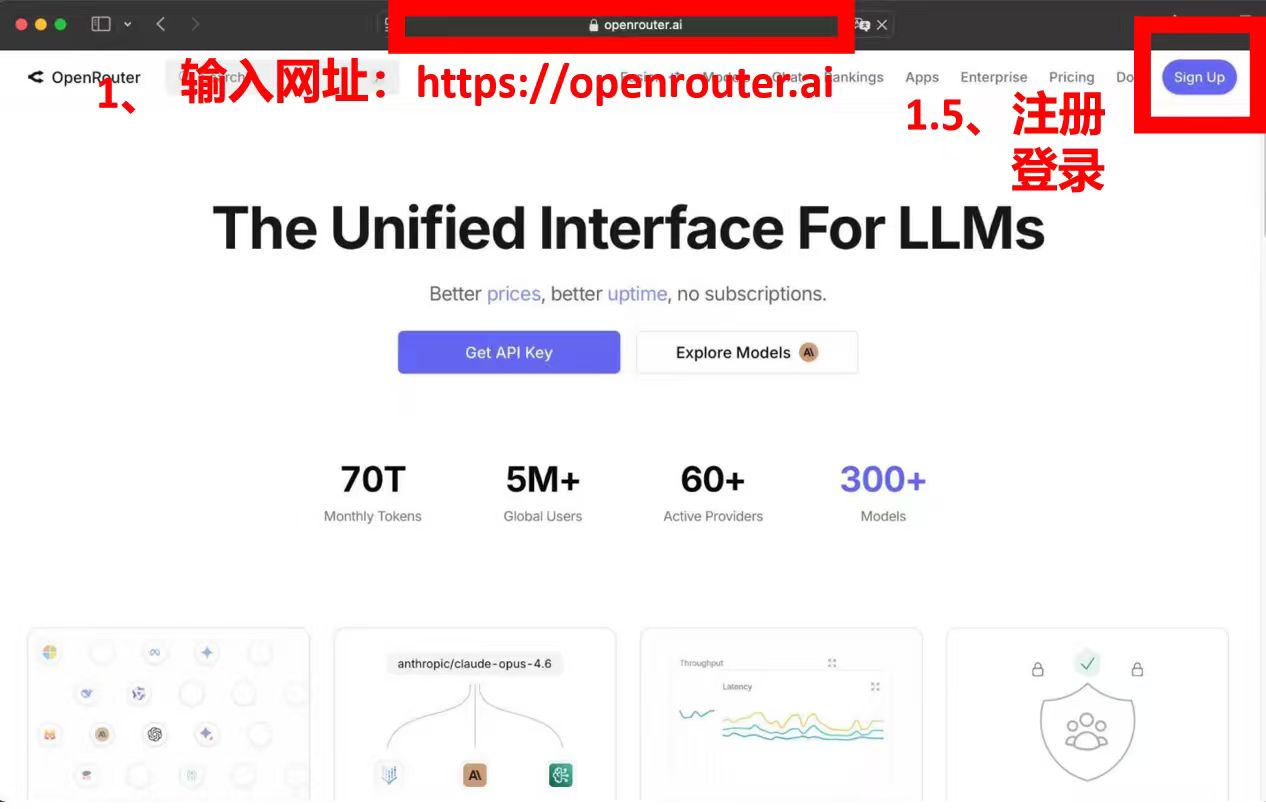
Log In
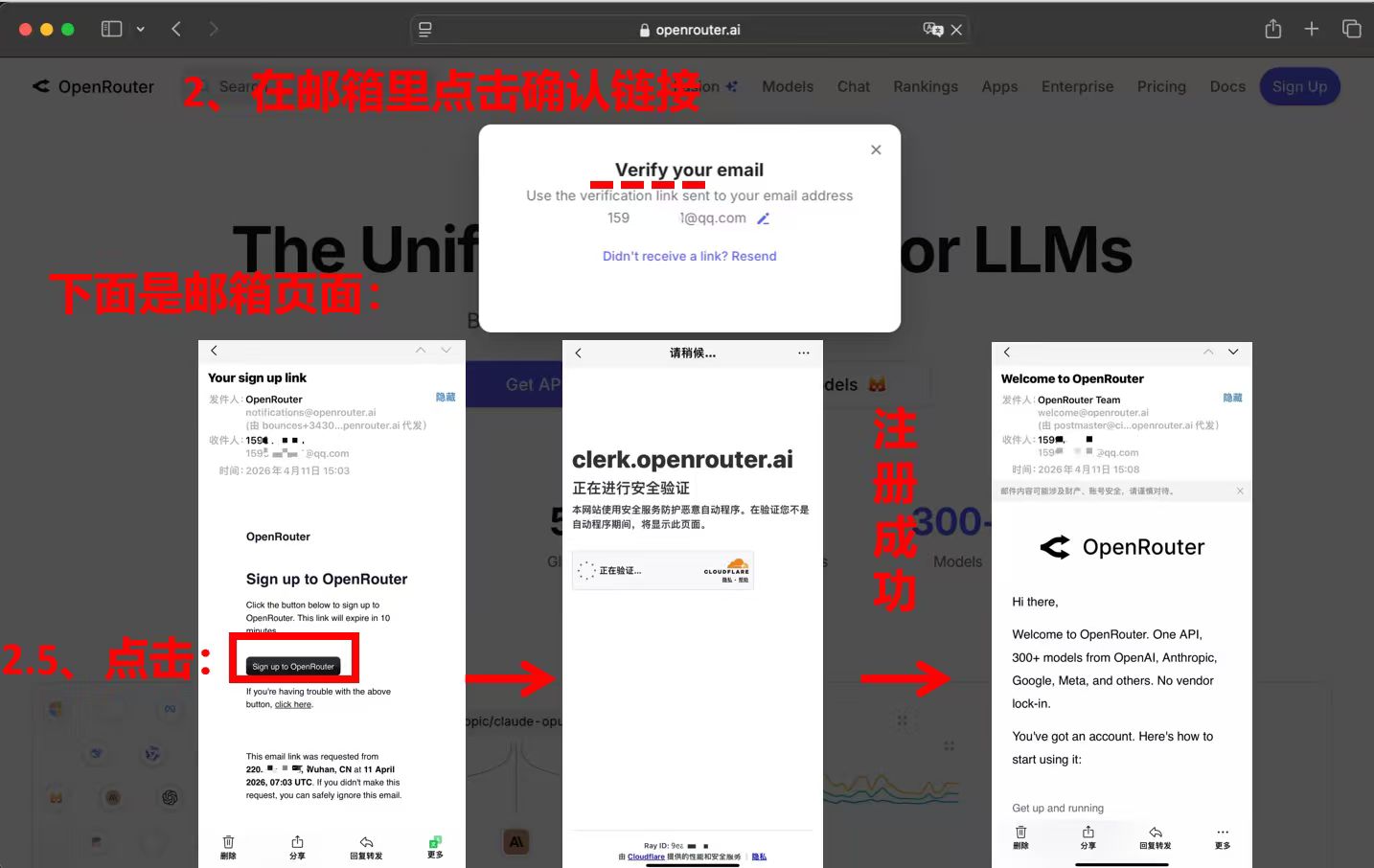
Register and verify your login using an email address.
Create API Key and Set Limits
Click “Generate API Key” in the backend. You can now use this key to configure OpenClaw’s models. However, you currently have a daily limit of 50 requests.
According to the official documentation, if you purchase 10 credits, your daily limit is immediately increased to 1,000 requests—this is the key to achieving “free lobster-raising freedom.”
After purchasing credits, we must prevent accidental use of paid models. Therefore, set up a “firewall” as shown below:
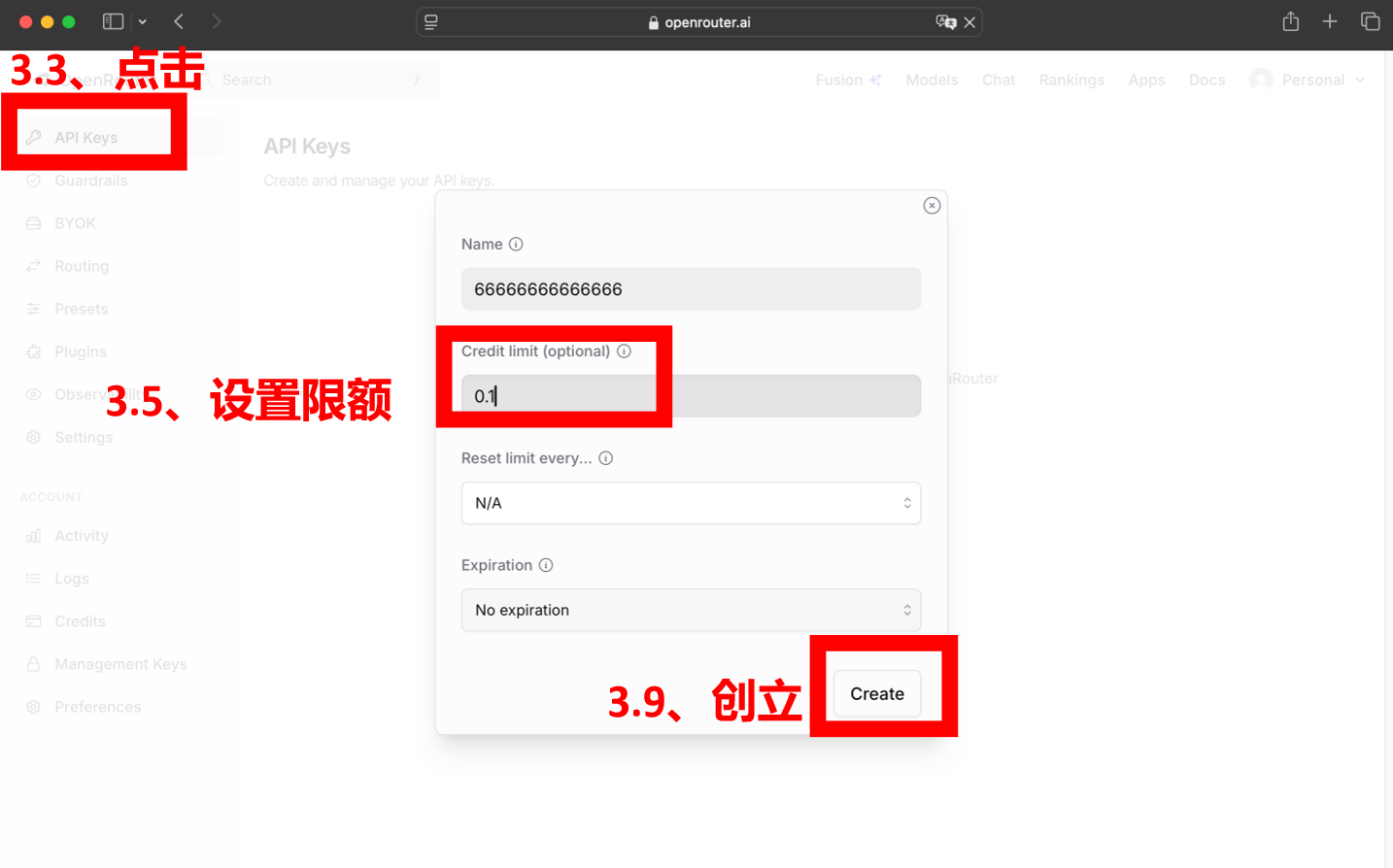
After purchasing credits, you can edit your API key and set a maximum monthly spending limit. Setting it to $0.10 is sufficient.
Once the firewall is set, it’s time to do some good—choose free models and help them test!
Model Selection and Billing Logic
- Billing Logic: Large models are usually billed per token, with different rates for Input (prompts) and Output (generated content).
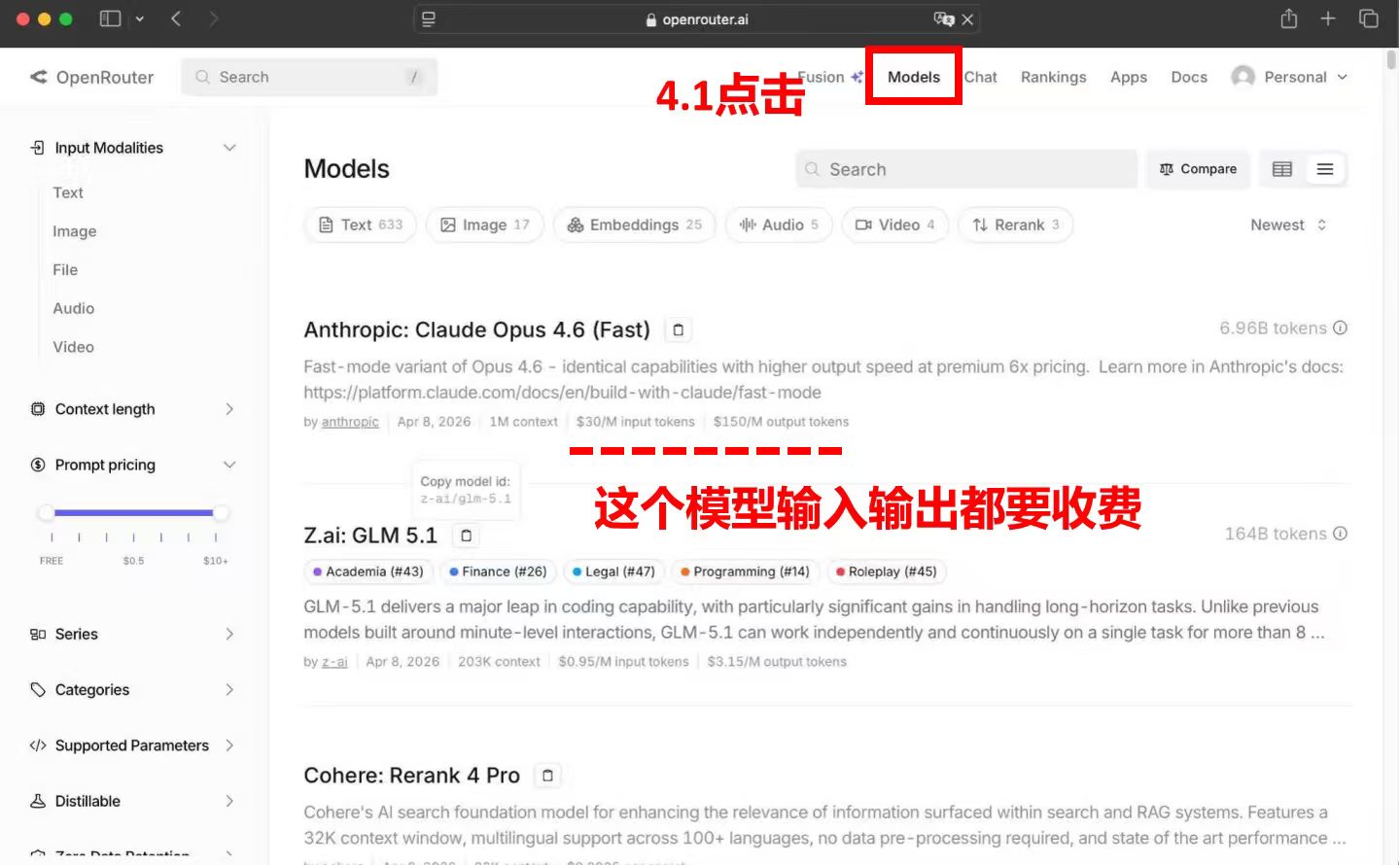
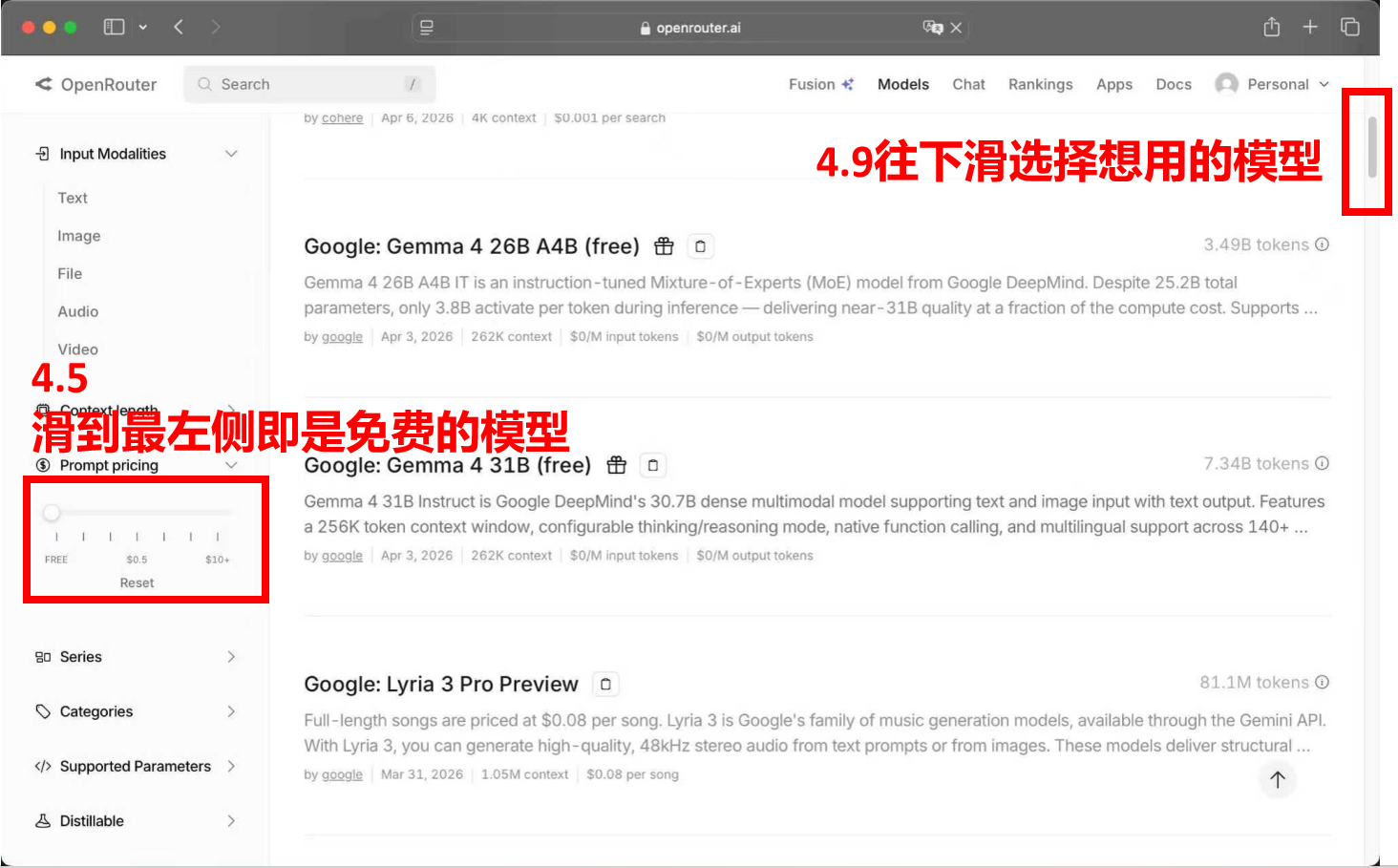
- Filtering Free Models: When selecting free models, look for models with
Input: 0, Output: 0.
As shown in the image below, find “Prompt Pricing,” set the price range to 0 to filter out most paid models, and then select models where both input and output are 0:
Test
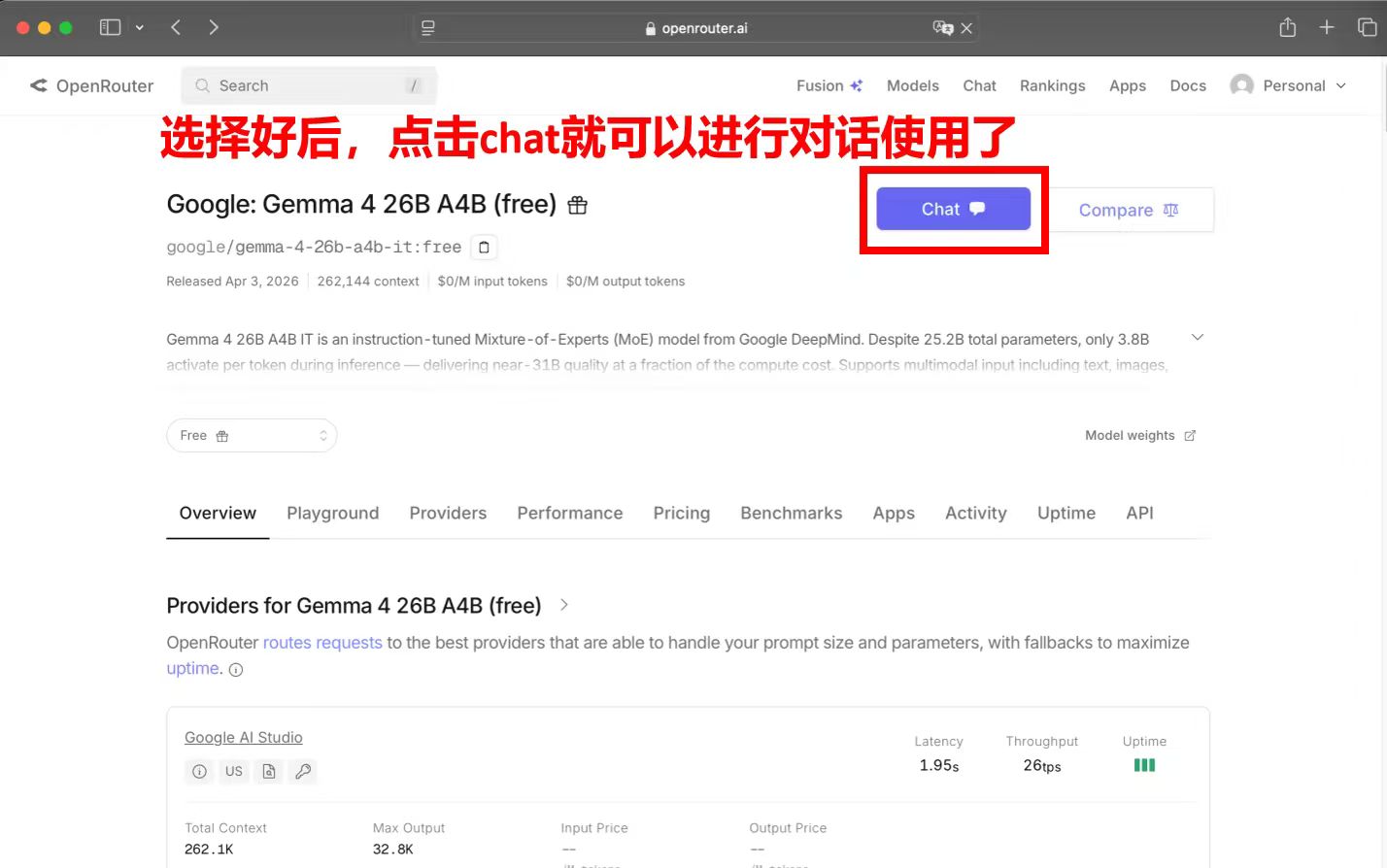
At this stage, the following models (free only) are recommended:
- Lobster-Raising Model Recommendations:
- Gemma 4 26B A4B: Extremely fast, excellent results, first choice.
- NVIDIA: Nemotron 3 Super: Produced by NVIDIA, free and user-friendly.
- OpenAI: gpt-oss-120b: Strong performance, suitable for complex lobster-raising instructions.
02 Top-Tier Intelligence, Unlimited Quotas, Thanks to “Old Huang” (Jensen Huang)
The current top-tier open-source model is GLM-5. If you can use this model for lobster-raising without worrying about bills, productivity will skyrocket.
NVIDIA says: “I’ve got you!”
This is NVIDIA’s AI Playground service. It provides top-tier intelligence models like GLM-5 and Kimi 2.5, which can be used permanently for free without binding a credit card. Beyond NVIDIA’s sincerity, we also see Jensen Huang’s ambition: If OpenClaw doesn’t take off, who will buy N’s chips in a few years?
So, believe that this “permanent” promise still has several years of shelf life. Without further ado, let’s see how to take advantage of the gift from “Old Huang.”
Visit the Official Website
Enter the URL: https://build.nvidia.com. Note that during login, you may be redirected to a different URL based on your region and language settings. We haven’t tested this in detail, but this free service should only be accessible via this URL.
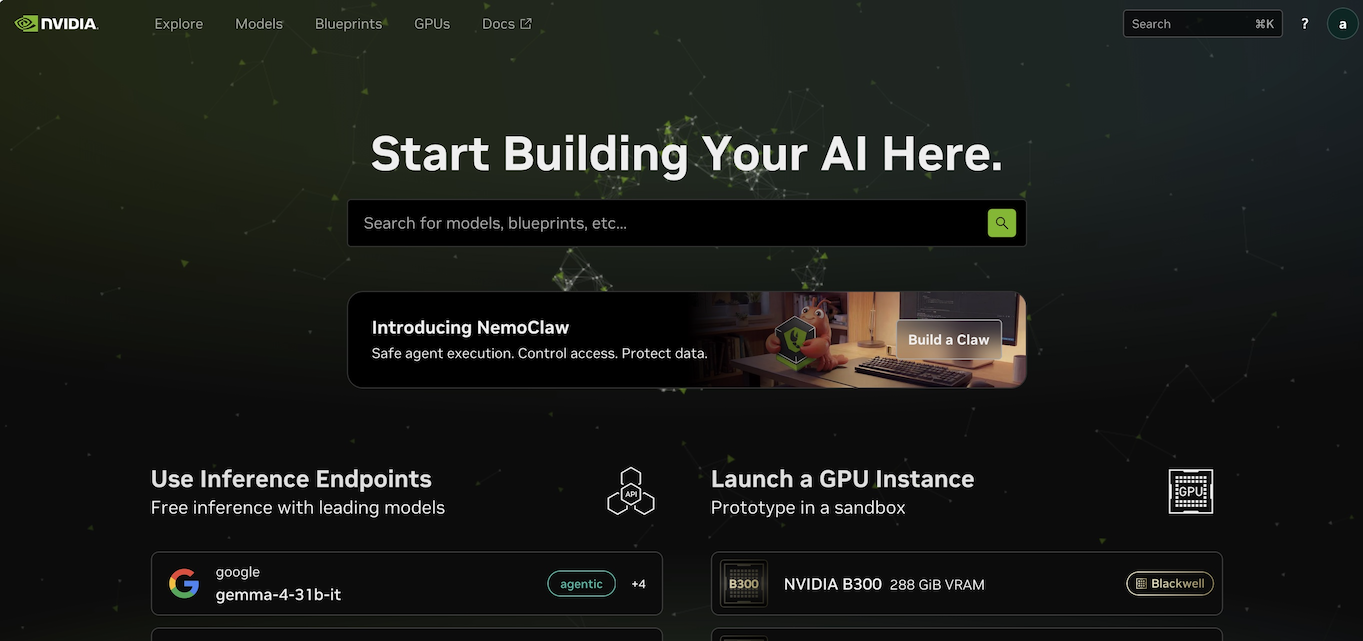
Using large models here is simple: mainly apply for an API Key and find the model card. Let’s start with registration.
Registration and Verification
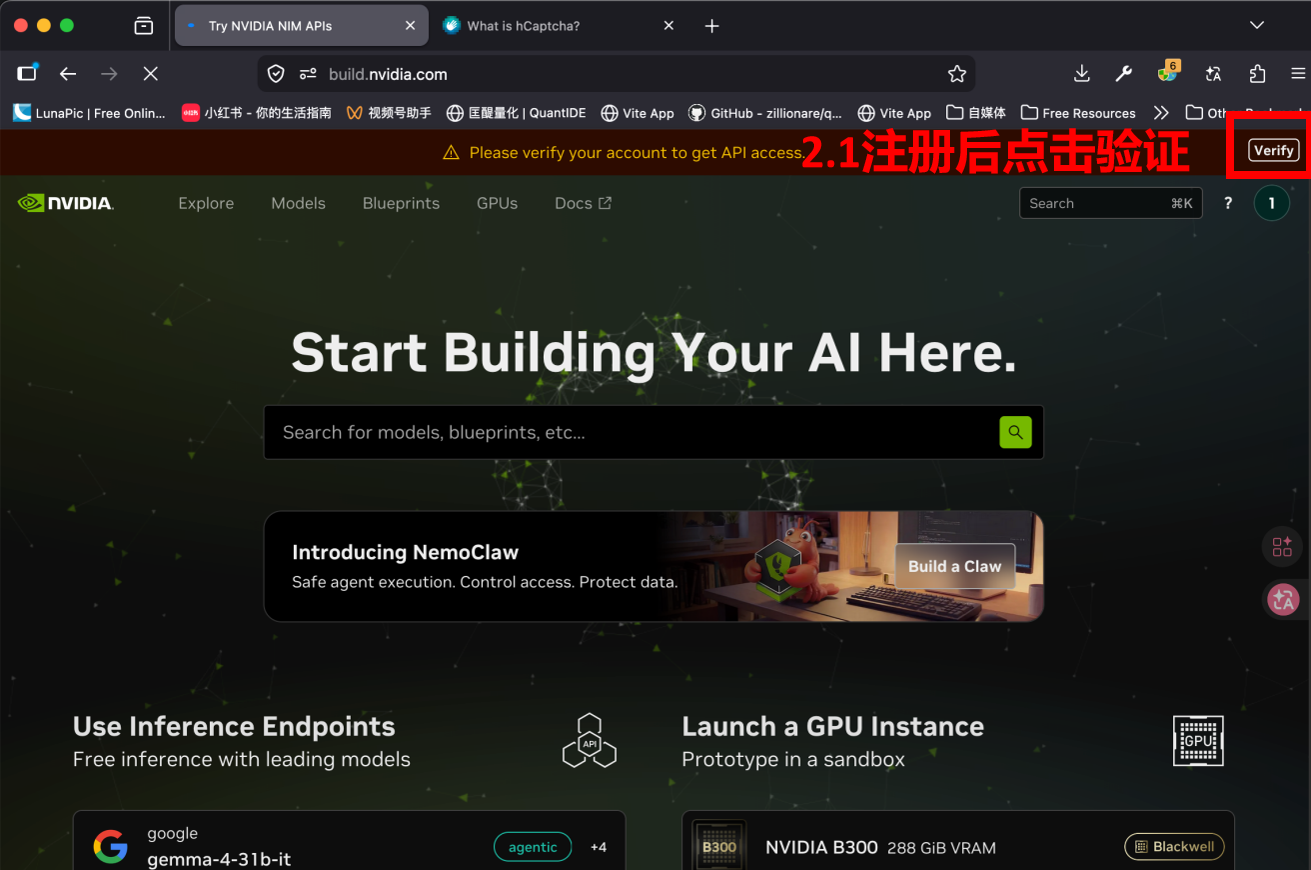
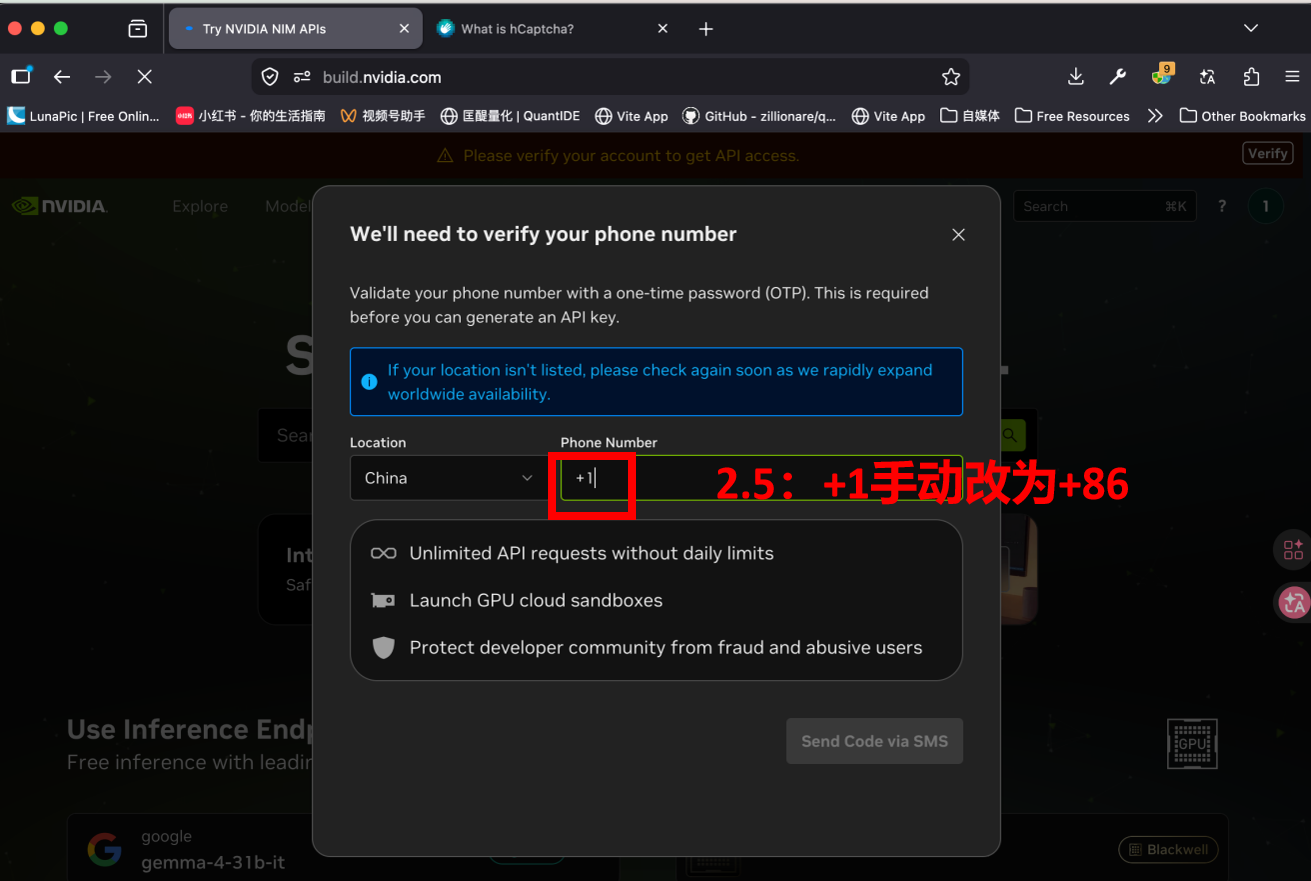
You can register with any email address. However, to apply for an API Key, you must undergo verification via SMS. In our tests, this step had no restrictions on phone numbers.
- Email Registration: Only an email is required.
- Account Verification (Verify): After registration, you must click “Verify” at the top to obtain the API Key.
- Phone Number Bug Handling: Verification requires a phone number. There’s a small bug here: you need to manually change the country code to
+86. After filling it in, click to send the verification code.
Generate API Key
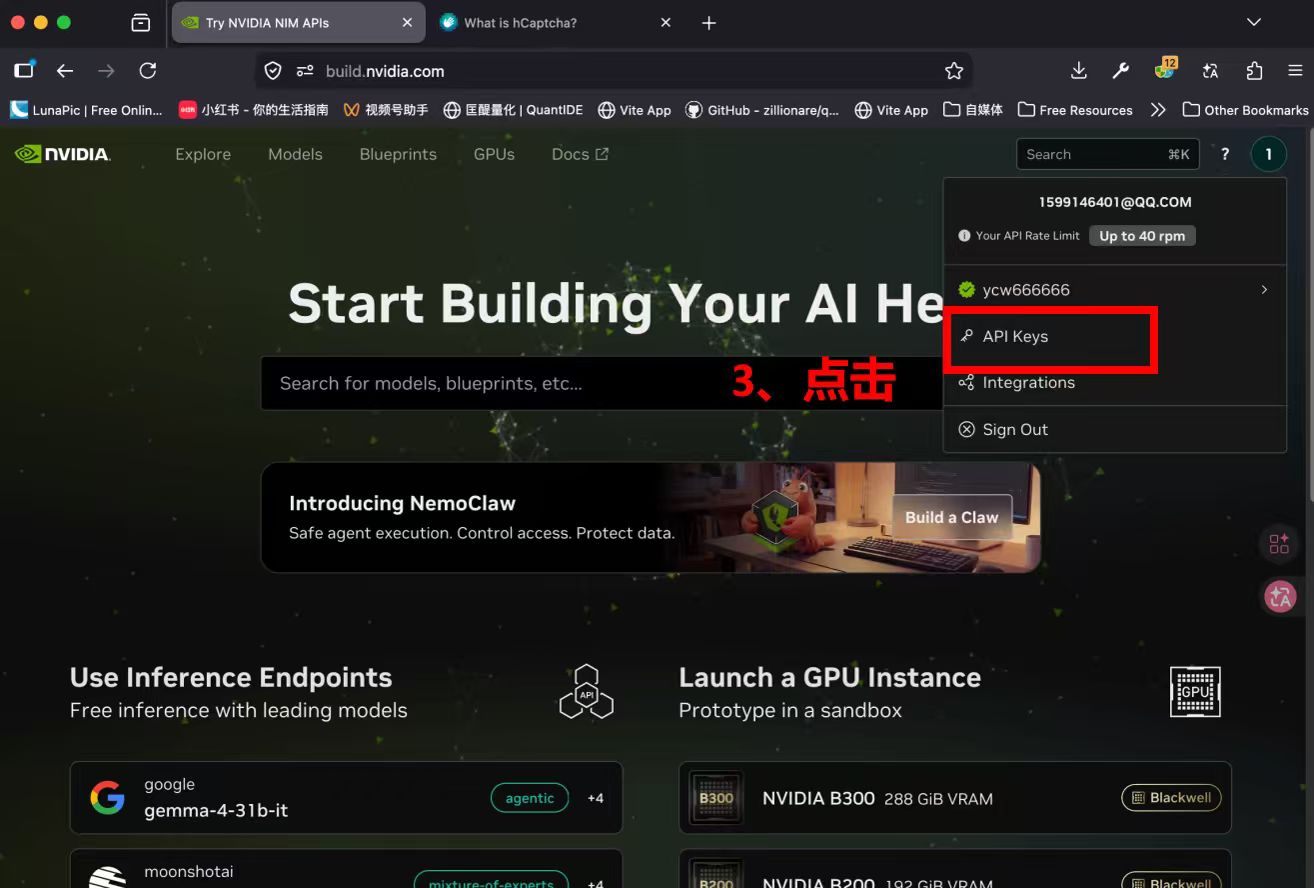
After verification, return to the page, click the avatar in the top right corner, and a “Generate API Key” button will appear. Click and save your Key. With it, you can connect to the service.
Model Selection and Limits
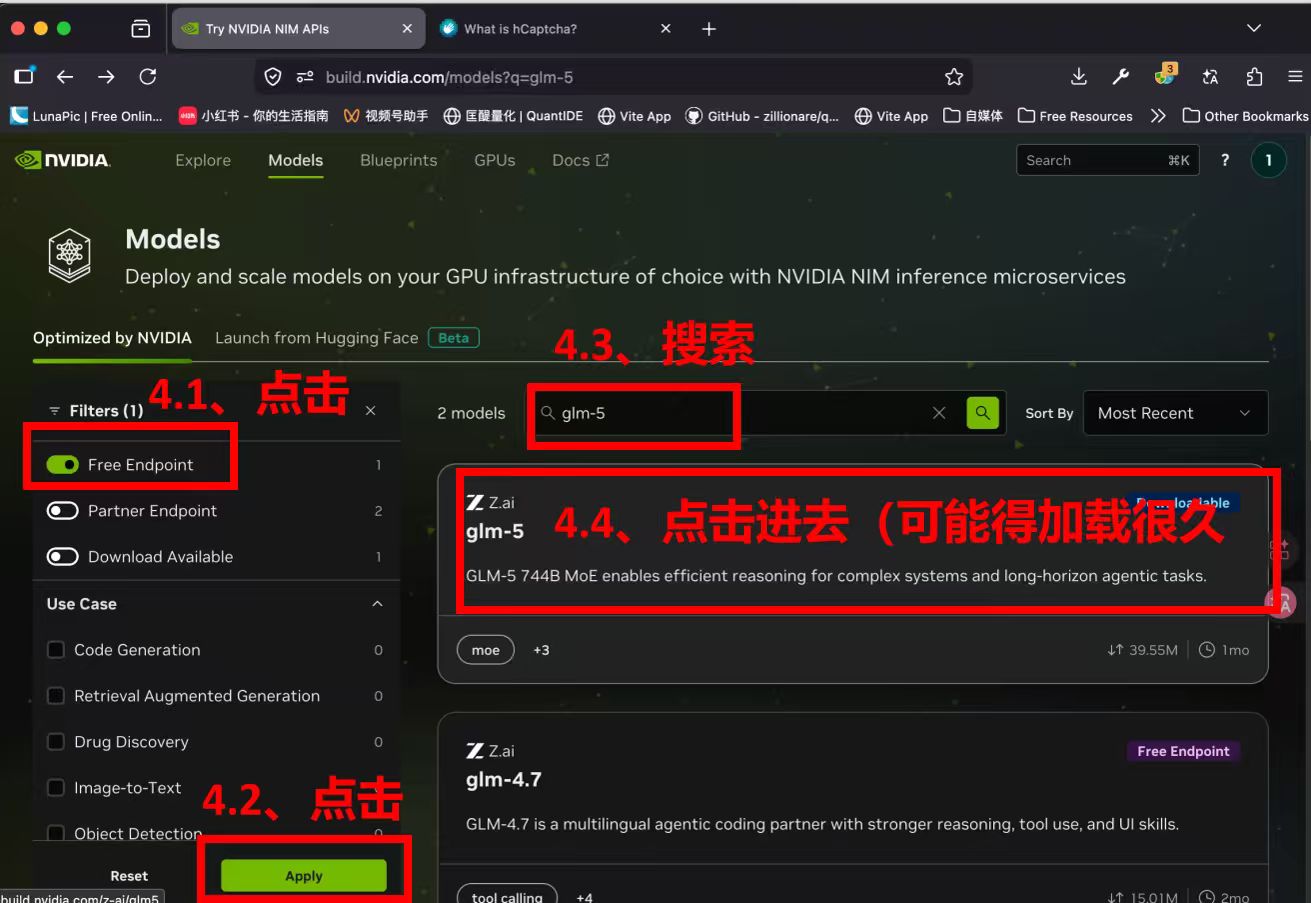
Below is how to check the model ID. For those familiar with large model operations, you can skip this step. For example, when mentioning the GLM-5 model, veterans know that its ID is almost always z-ai/glm5 across all platforms, so checking the model ID can be skipped.
- Select Model: Find
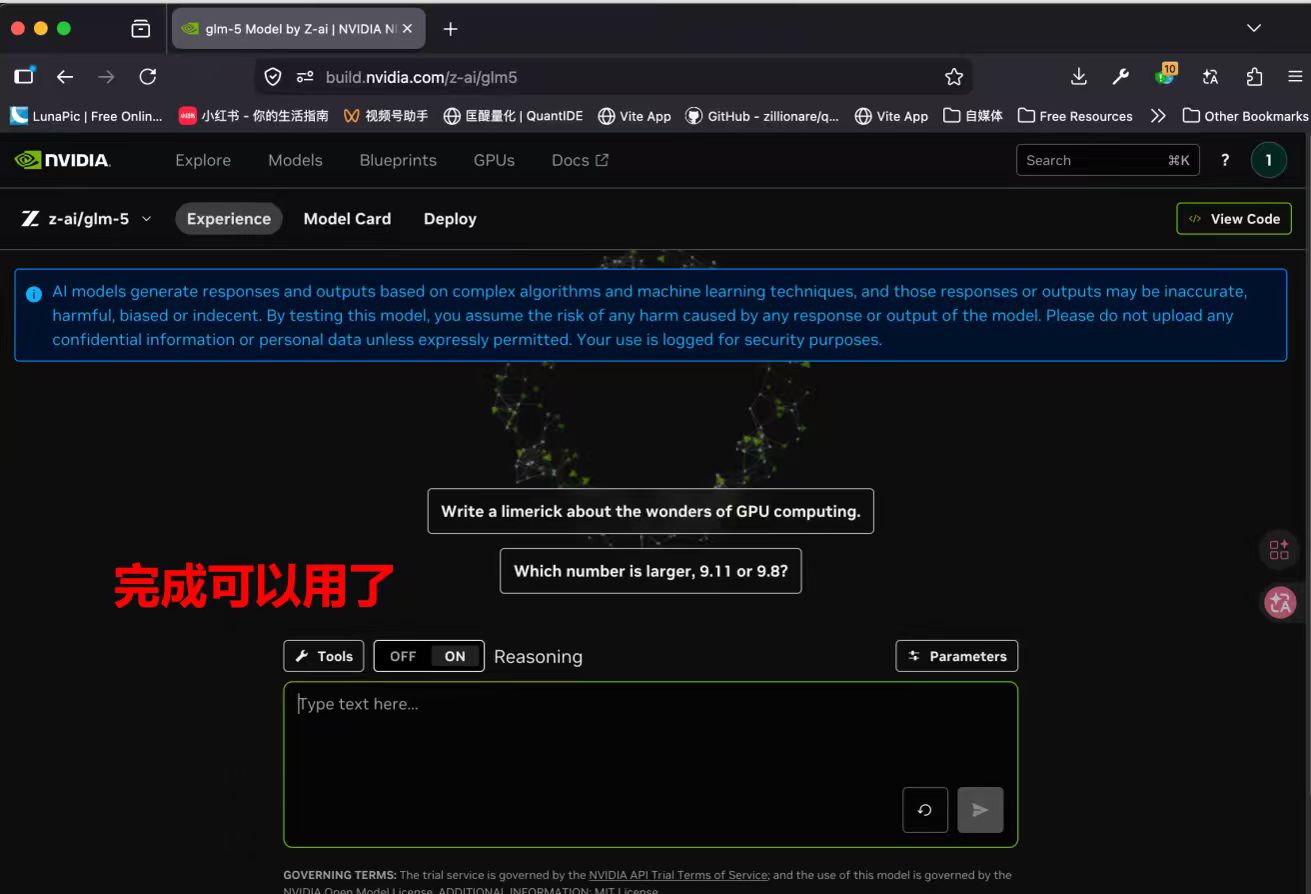
models: glm-5on the page, which is our currently recommended top-tier model. - Access Limits: Currently, NVIDIA has no quota limits but restricts access speed (RPM): do not exceed 50 requests per minute. This call frequency is basically below the limit for most users.
Similarly, you can test the models. You can chat briefly in the chat window below as shown in the image.
03 How to Configure OpenClaw?
When configuring large models, the core information mainly consists of three parts:
- Access URL (i.e., URL)
- API Key, which determines whether you have permission to use the service
- Model ID. Since a provider often offers multiple large models, you need the model ID to distinguish them.
For OpenRouter, it has always been a well-known online large model service provider, so its service address is pre-known to OpenClaw, and we don’t need to provide the URL during setup.
However, the build.nvidia.com service is relatively new, and it’s not a professional large model service provider, so OpenClaw won’t include its address. When configuring OpenClaw, we need to provide the service address.
The key information here is: https://integrate.api.nvidia.com/v1
Next, let’s look at the configuration in OpenClaw, using NVIDIA as an example. Configuring OpenRouter is similar, except for one less step of filling in the service address.
Here are the configuration steps:
- Get Information: Prepare the API key and model ID.
- Open OpenClaw Configuration Page:
openclaw config --section models - Follow the Diagram
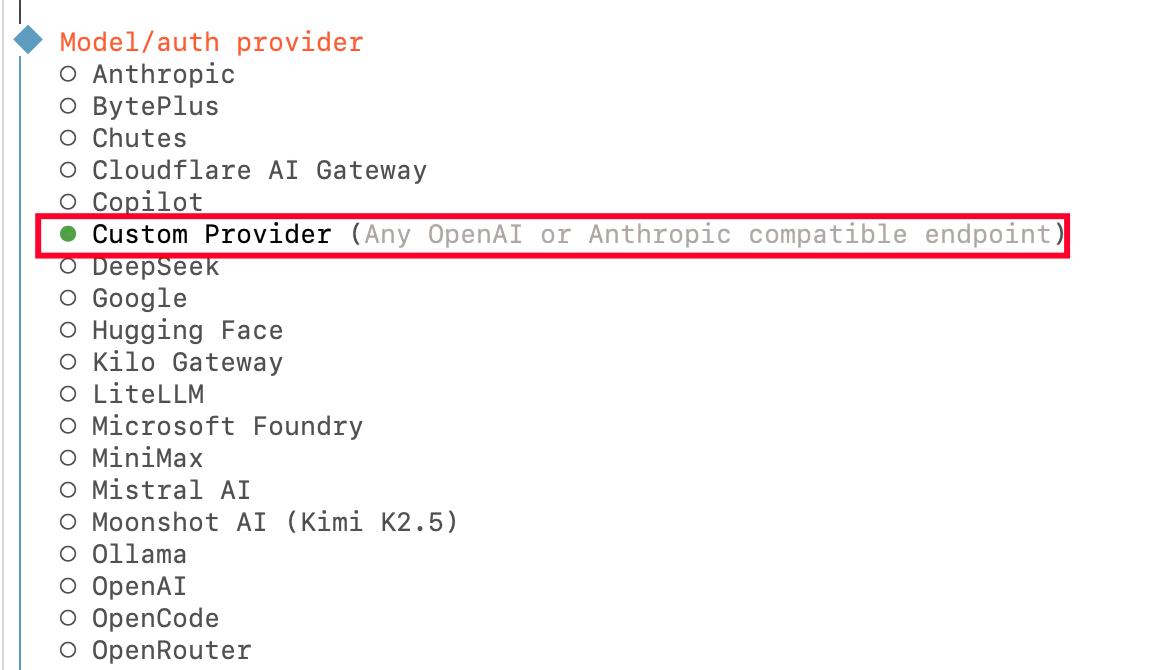
If using OpenRouter’s service, select OpenRouter here, which is the last item in the image. Next, fill in the Base URL (if using OpenRouter, this step is skipped), API Key, and Model ID, as shown below:
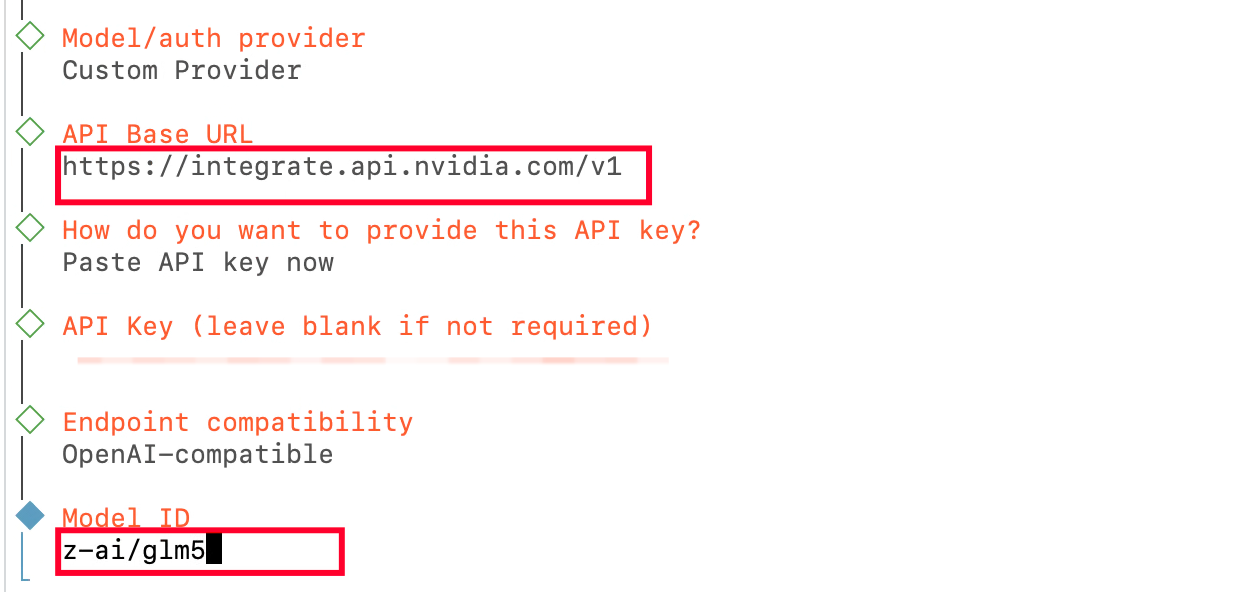
You can directly refer to the Python verification code below to fill in the URL, API-Key, and Model:
# OpenClaw access parameter reference (corresponding to key lines in the code)
client = OpenAI(
base_url="https://integrate.api.nvidia.com/v1", # <--- Fill in OpenClaw's URL/Base URL
api_key="YOUR_NVAPI_KEY" # <--- Fill in OpenClaw's API-Key
)
model="z-ai/glm5" # <--- Fill in OpenClaw's Model/model name- URL (Base URL): Enter
https://integrate.api.nvidia.com/v1 - API-Key: Enter the NVIDIA Key you just saved.
- Model (Model Name): Enter
z-ai/glm5(if you want to try other NVIDIA models, such as Nemotron, you can change the corresponding name here).
04 Parameter Verification
If the configuration fails, you can run the complete Python program below to finally confirm whether the relevant information is correct:
import os
from openai import OpenAI
# Initialize client
client = OpenAI(
base_url="https://integrate.api.nvidia.com/v1",
api_key="YOUR_NVAPI_KEY" # Replace with your generated Key
)
# Call GLM-5 model
response = client.chat.completions.create(
model="z-ai/glm5",
messages=[
{"role": "system", "content": "You are the world's top AI!"},
{"role": "user", "content": "Hello, GLM-5 model!"}
],
temperature=0.7,
max_tokens=1000
)
print(response.choices[0].message.content)Postscript
After burning through 75 million tokens in one day, I was deeply impressed by OpenClaw’s infinite possibilities.
Everyone should raise a few lobsters. Smart code expands our brains, broadens our workspaces, and improves our work efficiency. All of this is to build a stronger version of ourselves.
However, despite knowing the extreme importance of this, you may be constrained by the high cost of raising lobsters, the insecurity, and the difficulty.
I initially faced the same difficulties, but with the help of the community, I not only found a very good solution but also turned it into a product. Along the way, I gained a lot of experience and encountered many pitfalls that I want to share with everyone.
Today’s sharing is just a small part. Follow us, and let’s raise lobsters together. Moreover, the information shared today is definitely time-sensitive, and the next wave of free resources will likely be found by me first.
Stay in touch!