
8 IPython Tricks You Probably Don't Know
The cover image shows Macky Auditorium at the University of Colorado Boulder. Boulder is the flagship campus of the University of Colorado system, home to 5 Nobel laureates and 1 Turing Award winner.
IPython author Fernando Pérez earned his PhD in particle physics here. In 2001, he started IPython as a side project and later became a co-founder of Project Jupyter. For his contributions to IPython and Jupyter, he has received the NASA Distinguished Public Service Medal and the ACM Software System Award. He is also a member of the Python Software Foundation, the organization that guides the direction of Python.
"Let Your Light Shine!" — the motto of the University of Colorado.
IPython is a powerful interactive Python shell that offers far more features and convenience than the standard Python shell.
Created by Fernando Pérez in 2001, IPython was designed to give scientists and data scientists a more efficient, user-friendly interactive Python environment. Over time, it has become an indispensable tool for scientific computing, data analysis, and machine learning.
The success of IPython also gave rise to Jupyter. In 2014, Jupyter was spun off from the IPython project and extended to other languages. The name Jupyter itself comes from the first letters of Julia, Python, and R.
Even with Jupyter Notebook around, there are still plenty of reasons to use IPython today. The core reason is that it is much more lightweight than Jupyter — both to install and to use. Lighter, yet remarkably capable.
Installing IPython is faster and easier than installing Jupyter.
pip install ipythonThen just type ipython at the command line to get started.
1. Use %magic Commands
Just like in Notebook, you can use magic commands in IPython. For example, %timeit np.arange(1_000_000). To apply a magic command to a whole code block, use two % signs.
2. Use Tab Completion
Type pd. and press Tab to list all attributes and methods of the pandas module. Press Tab again to navigate to a specific API, then hit Enter to insert it!
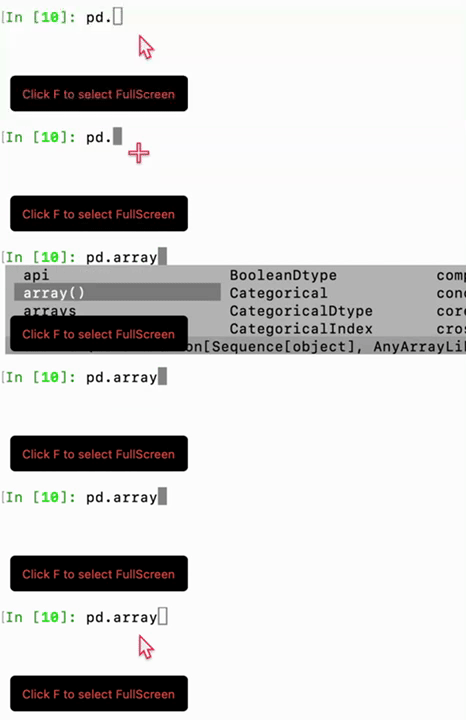
Animation not visible to Xiaochong Book readers — sorry!
3. Interactive Help
This works the same as in Jupyter: add a ? after an object to show its documentation, and ?? to show its source code. Showing source code this way is incredibly handy.
4. Persist Temporary Variables
Use the %store command to persist variables to disk, so no data is lost even after a kernel restart.
For example:
%store variable_name 存储变量。
%store -r variable_name 从磁盘恢复变量。5. Plotting
If you rarely use IPython, you may be surprised to learn that you can plot even when IPython is running in a shell.
import matplotlib.pyplot as plt
plt.plot([1,2,3], [1,2,3])
plt.show(block=True)This will pop up a window showing the plot. Remember, the block=True argument in the last line is key. Without it, you won't see anything.
6. History and Related Commands
This set of commands is the real key to doubling your productivity.
You can use %hist to print all history commands. You can use _i(n) to retrieve the nth previous command.
For example, in my test,
_i10returned import matplotlib.pyplot as plt
A related trick is saving history commands to a file. That's what %save is for.
%save example 4 5 6 8Then you can reset the workspace (%reset) and reload the example.py file (%load).
This lets you build and refine code by writing and verifying it step by step, ending up with a high-quality, usable Python file.
7. Enable Debugging
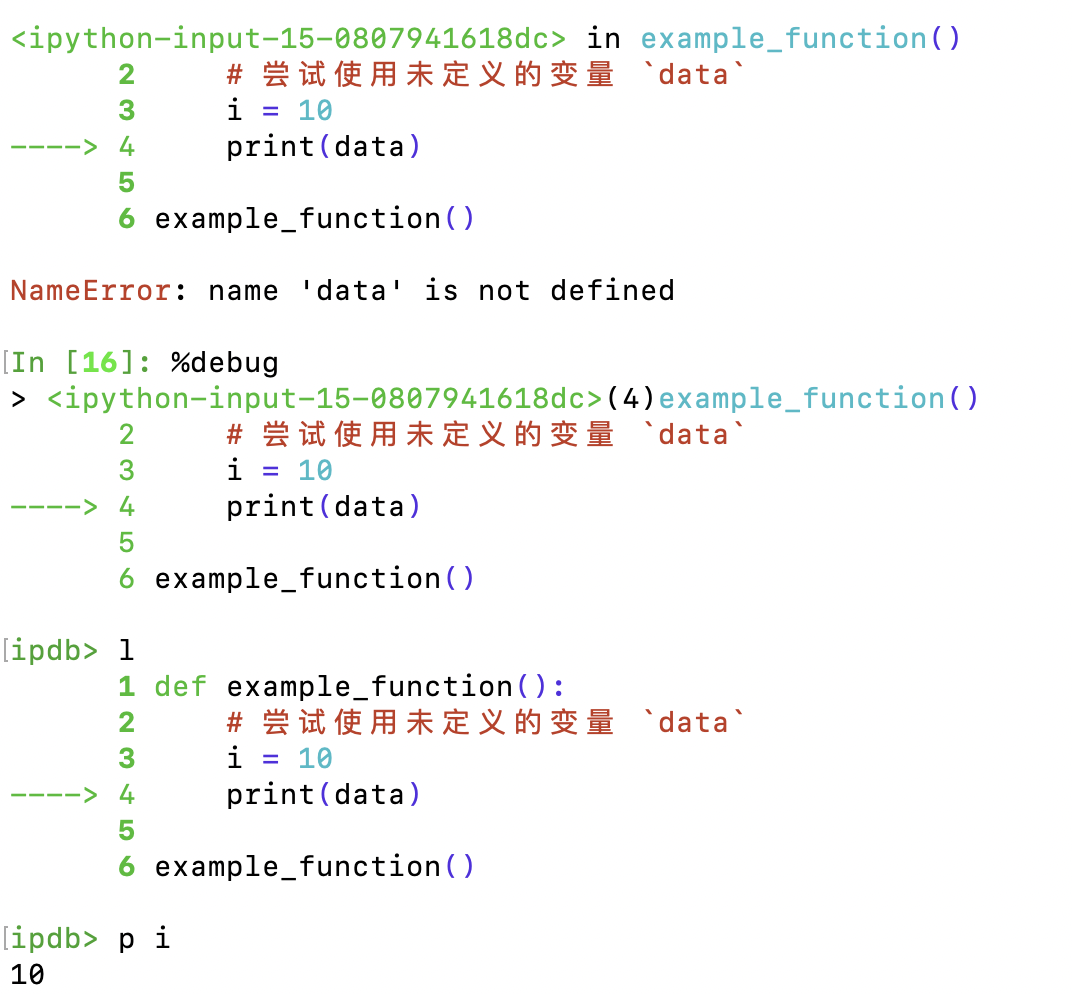
Once your code throws an error, you can type %debug to enter debug mode. This is more convenient than in Jupyter. In debug mode, you can use the p command to inspect variable values, which is often where the bug lies.
For example, the following code will fail at runtime:
def example_function():
# 尝试使用未定义的变量 `data`
i = 10
print(data)
example_function()After the error, immediately type %debug, then use the l command to list the code, the p command to inspect variables, and the q command to quit. The figure below shows entering debug mode, listing code, and inspecting variables:
8. Use bookmarks
If you use IPython often, or juggle several projects at once, the bookmark feature is very useful. The example below shows how to create a bookmark and use it.
%bookmark my_project ~/Projects/my-python-projectThis creates a bookmark named my_project pointing to the ~/Projects/my-python-project directory. Next time you open an IPython window, you can jump straight into the my-python-project directory via this bookmark:
# 如果忘记了创建的书签,可以用%bookmark -l来列出所有书签
# 如果要删除书签,可以用%bookmark -d来删除
%cd -b my_project
Related Posts
We have also published two notes on Jupyter tips — verified, 80% of people have never used them!
How Quants Can Make the Most of Jupyter (Part 1) How Quants Can Make the Most of Jupyter (Part 2)