
QMT/XtQuant Setup: Installation Pitfalls & Remote Dev Guide
Key Takeaways
1. Getting and installing XtQuant 2. How XtQuant works (Figure 2) 3. Version and documentation mismatch (Figure 3) 4. Remote development with VSCodeDownload and Installation
XtQuant is a market data and trading API library that can run independently of QMT — what the diagram on the right calls "Native Python." It doesn't ship as a wheel. To install it, download the source package from the ThinkTrader official site. XtQuant versions are identified by packaging date.
What you get is a zip archive containing Python files and Windows DLLs. It supports Python 3.8 through 3.11, which is an advantage over competing products. The docs hint that it can be installed on Linux, but documentation and examples are lacking, so we recommend holding off on that for now.
Our recommendation: install it on the same Windows machine as QMT, but inside a virtual environment first.
Create the environment with Conda (assuming the environment is named myquant):
conda create -n myquant python=3.10Once the environment is created, run the following command to locate the site-packages directory:
conda run -n myquant python -m siteIf you want to learn more about Conda commands, check out the book Python for Large Projects. The command above will output something like:
D:\\conda\\envs\\myquant\\lib\\site-packagesNow copy the extracted package into the site-packages directory and you're done. Make sure the folder is named xtquant and contains an __init__.py file. If not, you extracted it incorrectly.
How XtQuant Works
Downloading and installing XtQuant from the ThinkTrader site alone isn't enough to make it work.
XtQuant is essentially a proxy — it relies on the QMT client for market data downloads and trading. When you call an XtQuant API, it opens a socket connection to QMT and forwards your request for QMT to handle. You can't download the QMT software from the internet; you must open a brokerage account and get it from customer support.
After installing QMT, QMT or QMT-mini must stay online at all times. Otherwise XtQuant won't work either.
Version and Documentation Mismatch
ThinkTrader is the software vendor; the actual service is provided by the broker that licensed QMT and XtQuant.
This may explain why the XtQuant version you download from the ThinkTrader site is often ahead of what your broker has deployed on the server side. As a result, new features and bug fixes described in the docs may not be available to you yet.
For example, version 20231209 added get_etf_info and historical price-limit data. But as of December 20, clients of some brokers still couldn't use these new APIs. Calling them raises a "function not realize" error.
Remote Development with VSCode
If your dev machine runs Windows, you can skip this section. If you develop on Linux or Mac, you can work directly from your local machine without logging in to the Windows box running QMT.
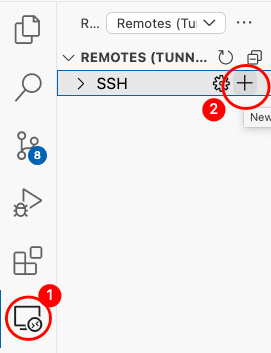
The basic steps are:
- Install OpenSSH Server on Windows. It may already be installed on your machine.
- In VSCode, click Remote Explorer.
- As shown in label 2, add the remote Windows machine.
- You will need to enter your password on each subsequent connection. You can also set up key-based authentication for password-less login — see the official Microsoft docs.